











Quick Links
Inserting Batteries
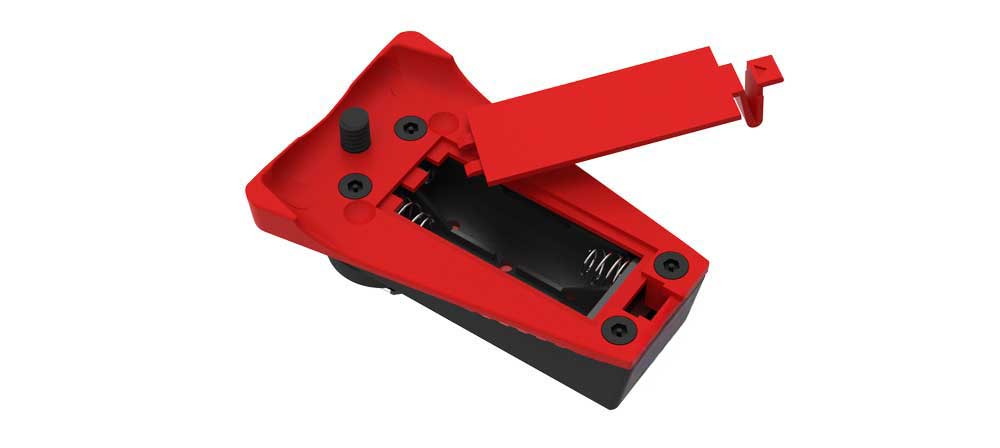
Remove the battery flap by depressing the latch and sliding towards the front of the product.
Insert the batteries in the correct orientation and replace the battery flap.
Turning On
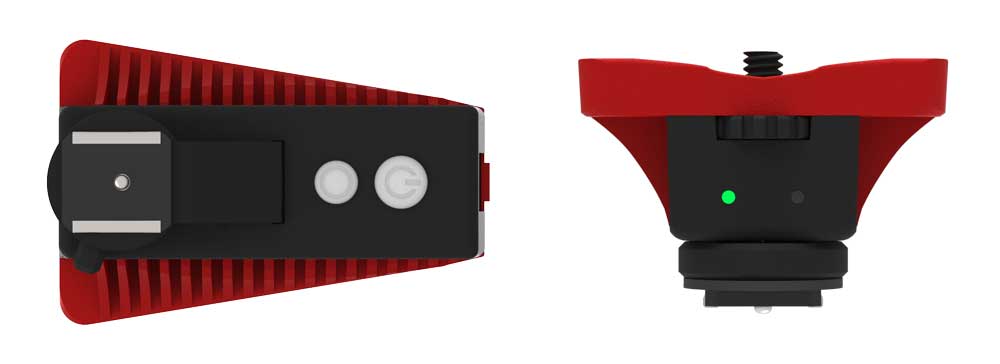
The Trigger has a power button located on the underside of the product.
Press once to turn on and again to turn off.
Mounting the Pod
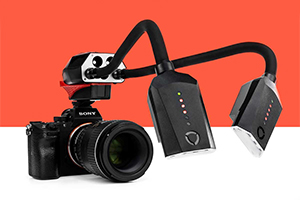
(Optional) Place your Adaptalux Pod onto the Trigger and use the tightening wheel to screw the Pod to the Trigger. Tighten until the Pod feels firmly attached. Be sure to support both the Trigger and Pod while turning the screw..
It is not required to mount the Pod on the trigger, although you may wish to do so as an on-camera lighting solution.
Attaching to the hotshoe
Ensure the locking slider is in the unlocked position and slide the Trigger onto your camera hot shoe.
Slide the locking mechanism to the right to lock the trigger to your camera hotshoe.
Test Button
The Trigger has a test button located on the underside of the product.
This button can be used to test fire your Flash Arms and ensure a good radio signal between the Trigger and Flash Arms.
Low Battery
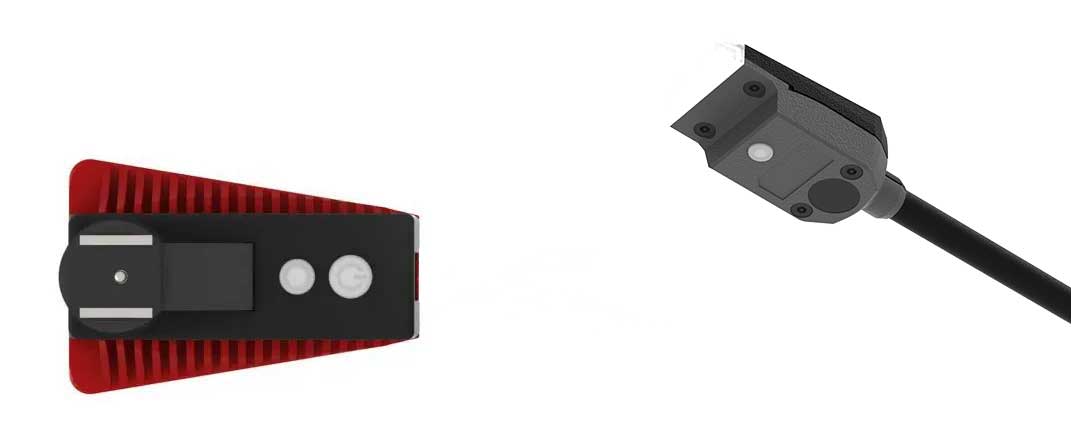
A red Indicator light will show on the rear of the product when the battery power is low.
When this light shows it’s time to replace the batteries in the Trigger.
Additional Resources
Adaptalux Flash information: Adaptalux Flash
Video Demo and Tutorials – Adaptalux Studio Demo