











Quick Links

App Download
The Adaptalux app supports both the Control Pod 3.0 and Pod Mini 2.0 and can be used to control both LED and Xenon Flash Arms wirelessly via bluetooth. The app is available on both iOS and Android.
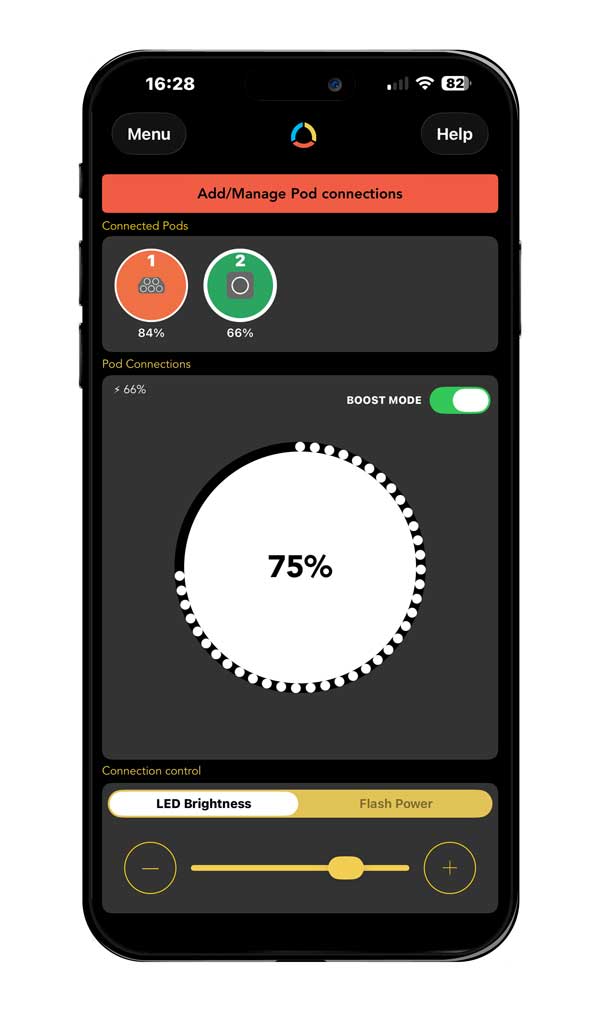
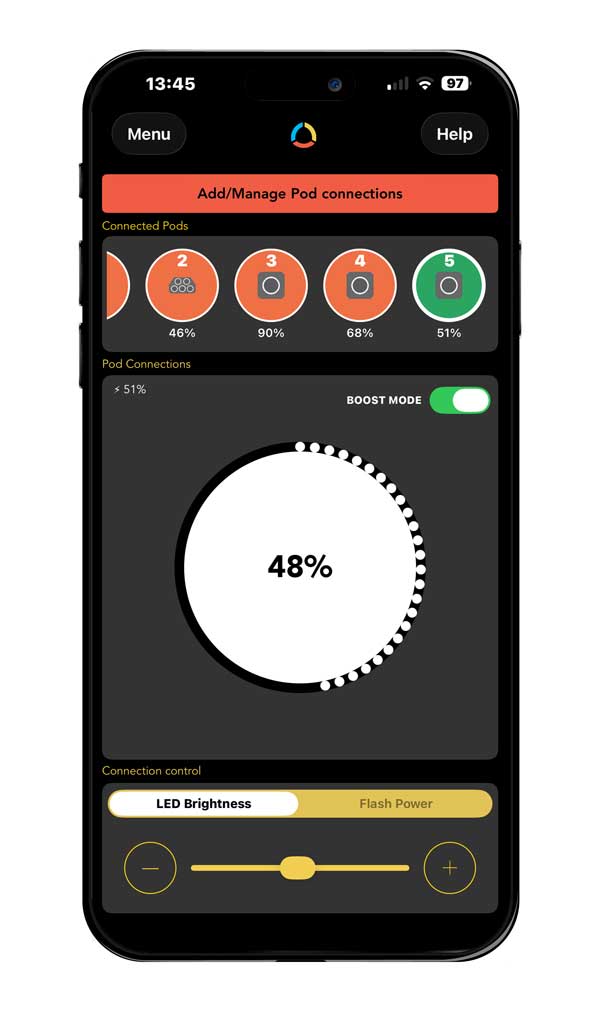
The Adaptalux App now supports multiple Pod Connections, add as many Pods to the app as you need.

Activate Discovery Mode
Pod 3.0
Connect at least one Lighting Arm into the ports on the front of the Pod.
Press the white bluetooth button on the top of the Control Pod.
A solid blue indicator light will display while Bluetooth discovery mode is active.
Pod Mini 2.0
Discovery Mode is automatically always active whenever a Lighting Arm is connected.

Connect a Pod
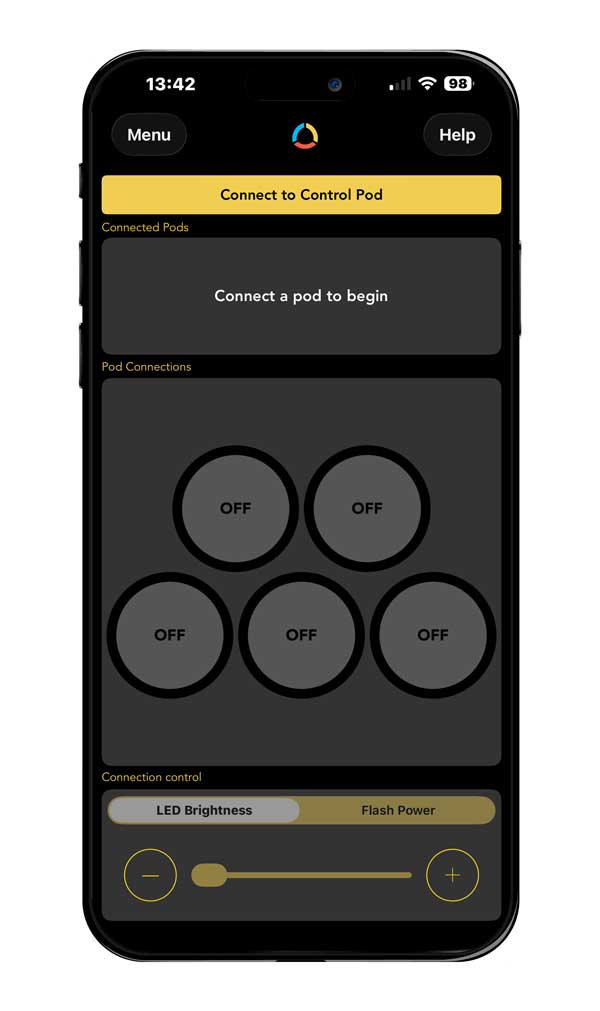
In the Adaptalux App interface, Press Connect to Control Pod.
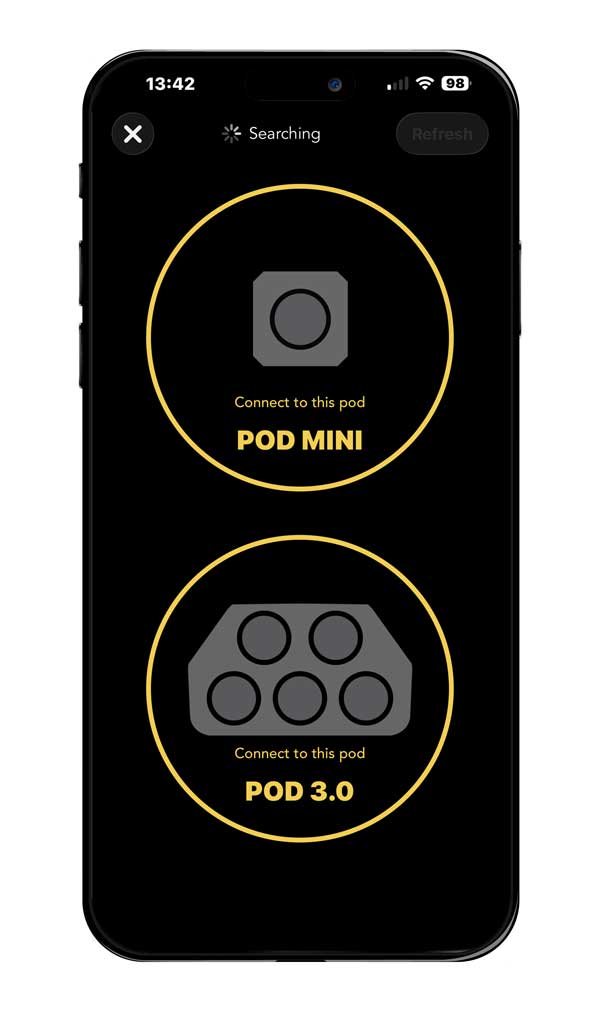
All Pods currently in discovery mode will show on the search screen.
Select a Pod to connect to.
Connect Additional Pods
The Adaptalux App now supports multiple Pod connections.
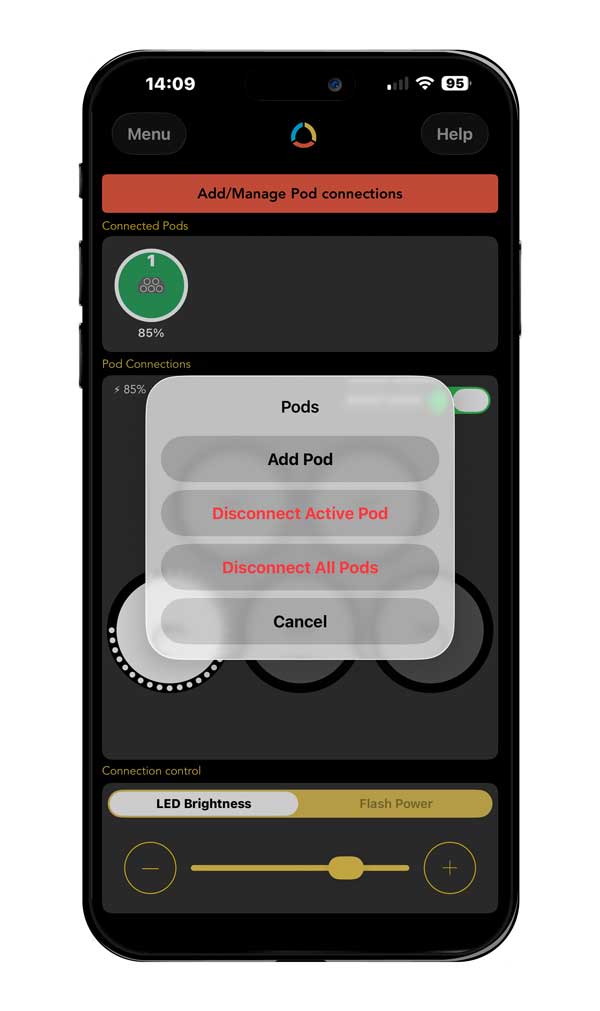
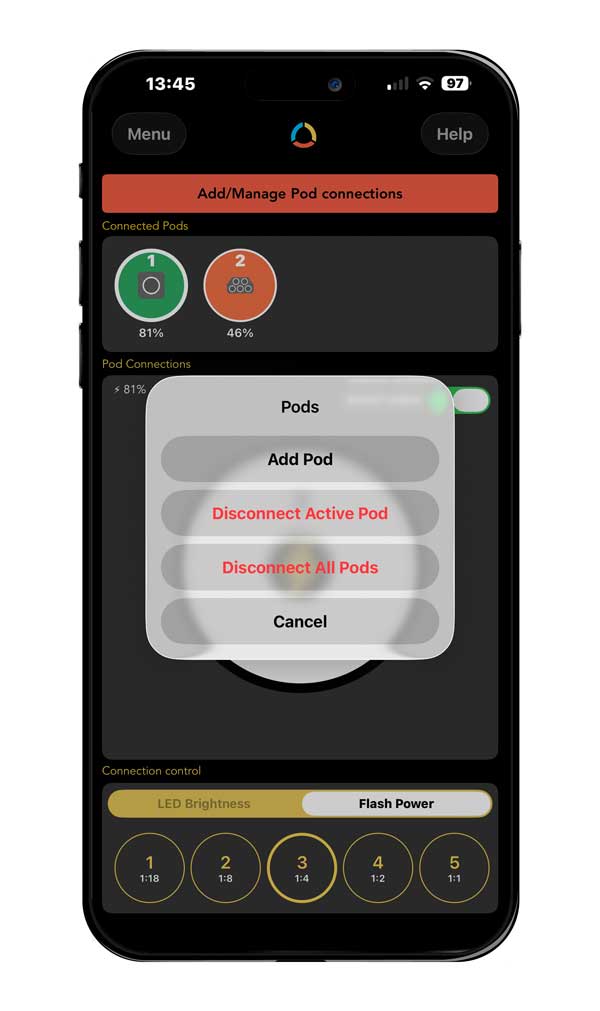
To add a new Pod, Tap “Add/Manage Pod Connections” button and then “Add Pod”.
The search screen will show all Pods still in discovery mode.
Repeat these steps to add as many Pods as you need.
LED Arm Control
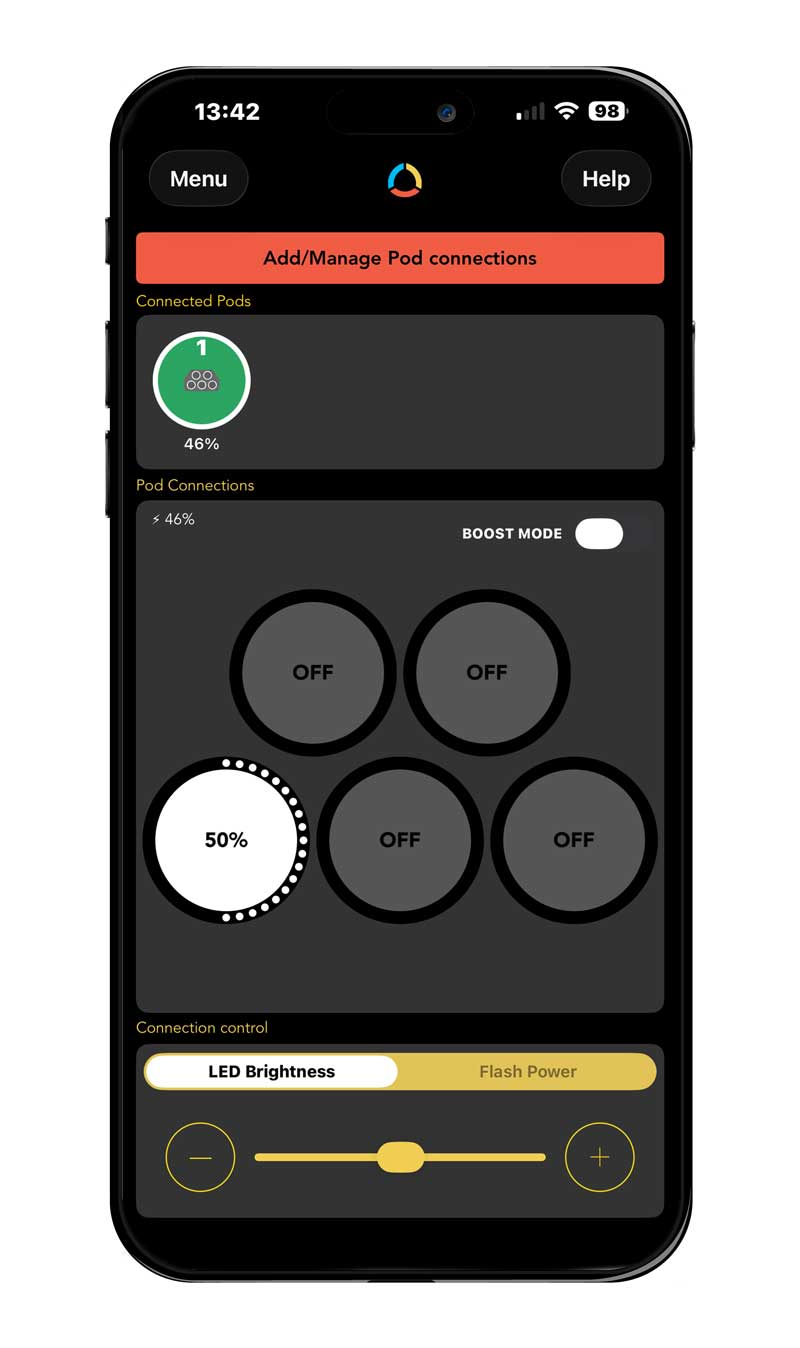
Tap to select a port on the app interface and use the slider to change the power settings for that port.
Use the + and – buttons for fine increment control.
Toggle Boost Mode using the switch on the top right.
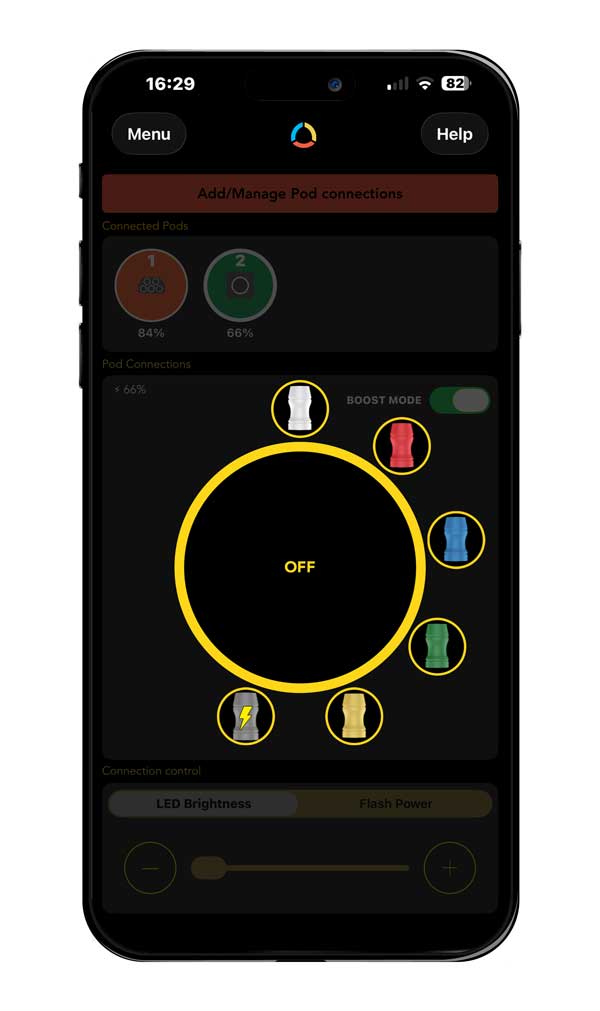
Double Tap a port to change the icon colour.
This is useful for reminding yourself which port contains coloured arms.
Xenon Flash Control
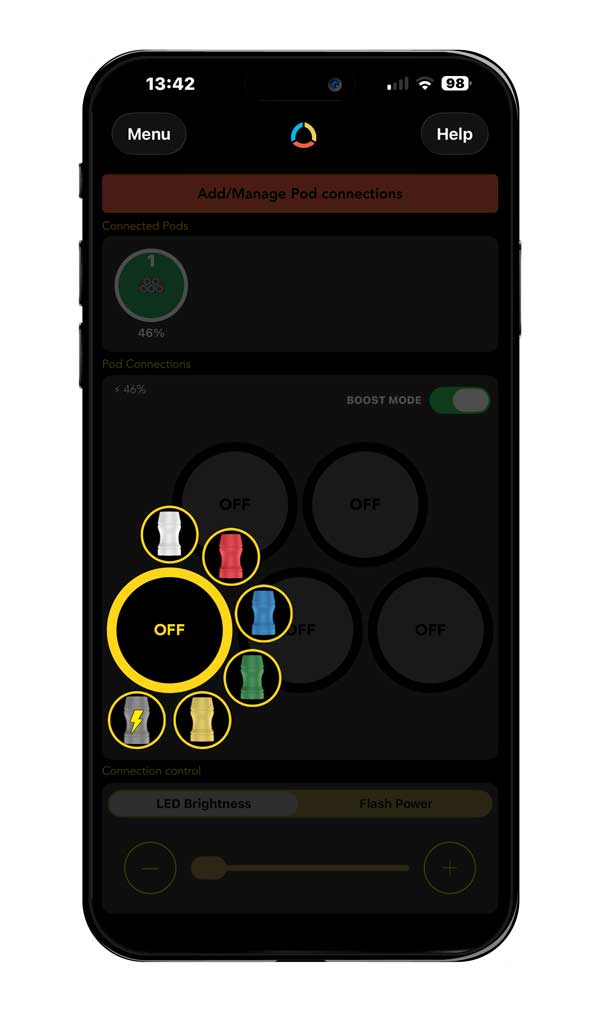
Double tap the port with a Flash Arm connected and select the Flash Symbol.
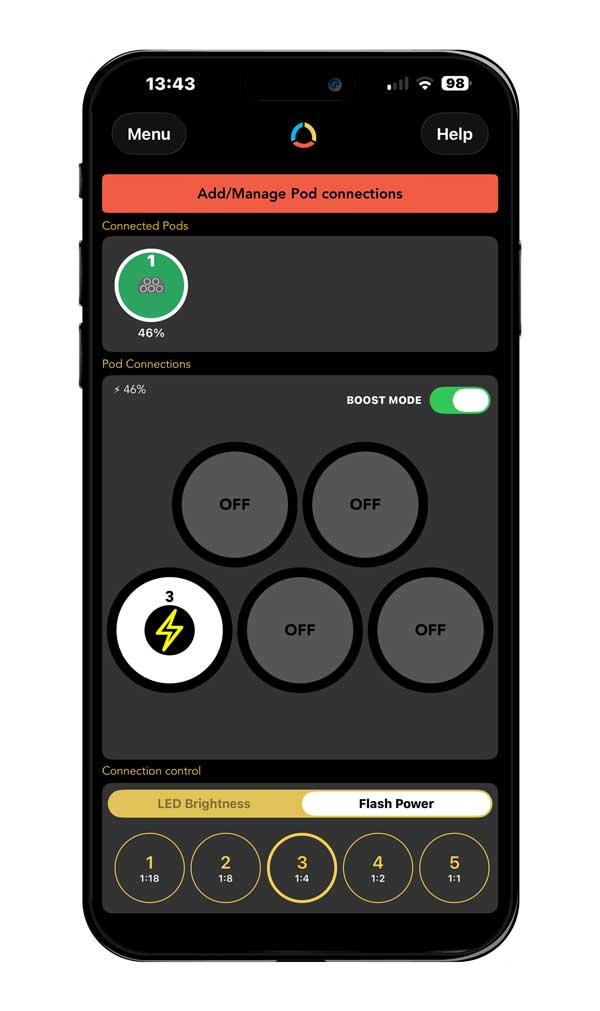
The control slider will change to the Flash Power Levels from 1-5.
Tap on the desired Power level, and the settings will be synched the active Flash Arm.
Power levels correspond with the red indicator lights on the Xenon Flash Arm
Disconnecting
To disconnect from the App, tap on “Add/Manage Pod Connections”.
Tap “Disconnect Active Pod” to disconnect from the currently selected Pod.
Tap on “Disconnect All Pods” to remove all Pods currently connected to the App.
Additional Resources
More Support Articles: Support Centre
Adaptalux Studio information: Adaptalux Lighting Studio
Video Demo and Tutorials – Adaptalux Studio Demo
Bluetooth Troubleshooting – Q: Can’t connect to Bluetooth